Find Answers Fastin Our Knowledgebase

Explore our step-by-step guides, tutorials and expert tips to get the most out of your hosting experience. Our Knowledgebase is here for you 24/7, whether you're setting up a domain, managing WordPress, or troubleshooting.

knowledegebase

How to Upload Files via the cPanel File Manager


You can use cPanel's inbuilt file manager instead of an FTP program.


1. Log in to your cPanel account.


2. In the Files section, click on File Manager.



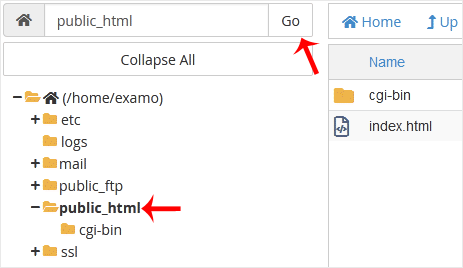
3. In cPanel File Manager, navigate to the directory where you want to upload your files to. For example, should you wish to upload your files to the public HTML directory, you must first go to /public_html. On the left side, in the list of directories, double click on the public_html directory.

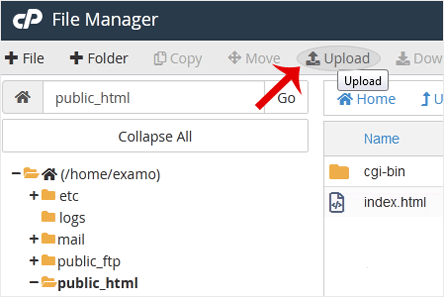
4. Now click on Upload.


5. Click on Select File and choose the file you want to upload from your computer. Click open and the upload process will begin. You can also drag and drop files from your computer in the upload box.


Was this answer helpful?

« Back

Explore Latest News

Explore product announcements, hosting tips, security news, and digital trends to help you grow your online presence. Whether you're a developer, business owner, or startup, our blog keeps you ahead of the curve.

Our Partners

The delivery of secure, high-performance hosting worldwide is our mission, and our partners play a vital role in making it happen.

cloudlinux
cpanel
digicert
immunify360
litespeed
softaclus
tripleace